Google Calendar Integration
Overview
The platform integrates with Google Calendar to provide two-way sync between your appointments and your calendar. When a contact books through the platform, the appointment appears on your Google Calendar. When you add events to your Google Calendar, the platform recognizes those times as busy and will not offer them as available slots.
Why this matters: You never have to worry about double-bookings. Whether you add a meeting in Google Calendar or a contact books through the platform, your availability stays accurate everywhere.
Is it required? No. Booking works without any calendar connected: you set your hours on an event type and the AI books against those. Connecting Google Calendar adds the two-way sync described here, plus automatic Google Meet links. See Booking System.
Connecting Google Calendar
There are three ways to connect:
From Settings (the main way)
- Open Settings, and in the sidebar under the Integrations group click Booking & Calendar.
- Find the Google Calendar card under Available and click Connect.
- A Google sign-in window opens. Choose the account with the calendar you want to sync and grant permission. (If nothing opens, your browser blocked the pop-up — allow pop-ups for this site and click Connect again.)
- Once you’ve granted access, the page updates on its own: Google Calendar moves up to Connected with your Google account address underneath.
From an event type
The moment you actually need Google Calendar, the app points you at it:
- Click Appointments in the sidebar (under Engage), switch to the Event Types tab, and create or open an event type.
- Pick Google Meet as the meeting type (or try to flip on Sync bookings to Google Calendar at the bottom of the form).
- If your calendar isn’t connected yet, an orange warning appears with a Connect Google Calendar link:
- Click the link. It takes you to Settings → Booking & Calendar — carry on from step 2 above.
During guided onboarding
If you’re just setting up your account, the guided onboarding wizard has a Connect Google Calendar step — it appears automatically once you’ve chosen AI books for me on the booking-options step. See Guided Onboarding.
Important: These permissions are required for two-way sync to work. The platform only accesses your calendar data — it does not read your emails, contacts, or any other Google data. You can revoke access at any time from your Google account’s own security settings.
Tip: If you use multiple Google accounts (for example, one personal and one for work), make sure you select the account that has the calendar you want the platform to sync with.
Checking your connection status, and disconnecting
Settings → Booking & Calendar is also where you check the connection later. When Google Calendar is connected it sits in the Connected list with a Disconnect button beside it.
Disconnecting stops new bookings from syncing to your calendar and stops the AI from creating Google Meet links. Appointments already in the platform stay exactly where they are.
Two-Way Sync Explained
Two-way sync means changes flow in both directions automatically:
The App to Google Calendar
- When a contact books an appointment in the app, the event automatically appears on your Google Calendar.
- When an appointment is canceled in the app, the corresponding Google Calendar event is updated or removed.
- The appointment’s details are filled into the calendar event for you (see the list below).
What syncs to your Google Calendar
When a booking is created, the platform fills in the Google Calendar event with everything you need to see at a glance:
- The date and time of the appointment.
- The contact’s name, phone number, and email — so you know who you’re meeting and how to reach them. When their email is known, the contact is also added as a guest on the event and receives the Google Calendar invitation by email — including the Google Meet link, so they can join the meeting. (The invitation follows the event type’s Send appointment email to contact switch. Chat channels such as WhatsApp do not carry an email, so have the agent ask for it before booking; without a real email on file the event has no guest.)
- The meeting location — either the physical address you set on the event type, or the customer’s own address if you collected it during booking (see Collecting Extra Information During Booking).
- The meeting link — a Google Meet link created automatically, or your custom link, depending on the Meeting type you chose for the event.
- Any extra information the AI collected during booking (for example, number of guests or a reference number), shown in the event’s description and notes.
Example: A contact books a “Home Consultation.” The calendar event shows up with their name, phone, and email, the address they gave during booking as the location, a Google Meet link in case the call goes virtual, and any notes the AI gathered — all without you typing a thing.
Google Calendar to the App
- When you add an event to your Google Calendar, the platform recognizes that time as busy.
- The AI will not offer time slots that conflict with your existing Google Calendar events.
- If you move or delete a Google Calendar event, the platform updates accordingly.
Example: You add a team lunch from 12:00 PM to 1:00 PM on your Google Calendar. The platform immediately recognizes that time as unavailable. When a contact asks your AI agent for available appointment times, 12:00 PM to 1:00 PM will not appear as an option.
This holds whatever the event type allows: a busy block on your calendar removes the time even for event types that take multiple bookings per slot, because it means you are not available then, not that one of your places is taken. If the event type has several rooms, the block applies to the room that calendar belongs to.
Turning On Sync for an Event Type
Calendar sync is a per-event-type switch:
- Click Appointments in the sidebar and switch to the Event Types tab.
- Open the event type you want to sync — click its row, or use the pencil icon at the right-hand end — or create a new one.
- Scroll to the bottom of the form, to the Notifications section.
- Flip on Sync bookings to Google Calendar.
- Click Save (or Create event for a new one).
From then on, every booking of this event type lands on your Google Calendar, and the AI checks that calendar for conflicts before offering slots.
Choosing which calendar. Once Google Calendar is connected, the event type’s Rooms section (just above Notifications) gives every room its own Google Calendar picker, with the note “Busy time on this calendar blocks this room, and this room’s bookings are added to it.” An event type with one room picks one calendar there. An event type with a room per staff member points each room at that person’s own calendar, so each room is checked against its own calendar and writes its own bookings there. Leave a room on No calendar if it should not sync. Default calendar means the main calendar of the connected Google account (the one Google lists first under your name); pick a named calendar instead if bookings should land somewhere else. See Rooms.
Checking more than one calendar. If your time is spread over several calendars (for example Work and Personal), a room can check all of them. Under the room’s Google Calendar picker, tick the extra calendars under Also check these calendars for conflicts. Busy time on any ticked calendar blocks that room’s slots, both when the AI offers times and on your booking page. Bookings are still only added to the room’s own Google Calendar, never to the extra ones. You can tick up to 10 extra calendars per room, and the list shows every calendar of the connected Google account except the one the room already writes to. If a ticked calendar later disappears from the account (a share was removed, or you connected another Google account), it shows in red as “(not available)”. Untick it, because times for that event type cannot be offered while a ticked calendar cannot be read.
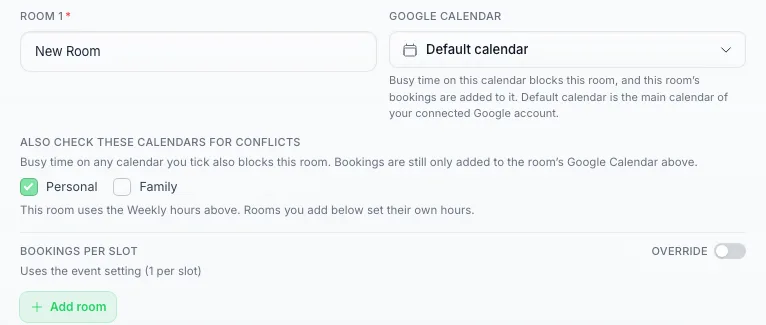
Tick the extra calendars this room should check. Bookings still go to the calendar picked above.
If you connect a different Google account. Rooms stay linked to the calendar you picked for them, and a calendar from the old account may not exist on the new one. When that happens, an event type with a single room is moved to the new account’s main calendar for you, and you get a notification naming the old and the new calendar. An event type with several rooms is left as it is, because a room’s calendar may belong to a colleague who only needs to share it with the new account again. In that case the room’s Google Calendar picker shows the calendar as “(not available)” with a warning under it, and times for that event type cannot be offered until you pick a calendar the connected account can see.
Tip: If you have a dedicated calendar for appointments (for example, “Client Bookings”), connect the Google account that holds it. One Google account can hold several calendars, so a team usually needs one connection, not one per person. This keeps your personal events separate from your booking schedule.
Conflict Detection and Busy Time Blocking
Once Google Calendar is connected and sync is on for an event type:
- Busy time blocking — Time slots that overlap with existing Google Calendar events are automatically removed from available slots. Your contacts will never be offered a time that conflicts with something already on your calendar.
- Slot cleanup — Once a time is booked, through the app or directly on your calendar, it stops being offered. The one exception is an event type set to take multiple bookings per slot: that time keeps being offered until it is full.
- A calendar per room — If an event type has several rooms and each is linked to its own calendar, every room is checked against its own calendar independently. Dr. A’s busy morning never takes Dr. B’s room off the list.
- Several calendars per room — A room can also check extra calendars for conflicts, such as your Personal calendar next to Work. An event on any of them makes that time unavailable. See Checking more than one calendar above.
Example: You have a meeting from 2:00 PM to 3:00 PM on your Google Calendar. The AI will not offer any appointment slots that overlap with 2:00–3:00 PM.
All-day and multi-day events. An event that runs all day, or over several days, blocks every day it covers. To block a trip or a holiday, create one all-day event for the whole period and set it to Busy. Google creates all-day events as Free by default, and events marked Free, working location events and birthdays do not block any time.
Real-Time Updates
The platform receives real-time notifications from Google Calendar whenever your schedule changes. Here is what that means for you:
- When you add, move, or delete an event on your Google Calendar, the platform updates your availability within seconds — not minutes or hours.
- You do not need to manually refresh or sync anything. It happens automatically in the background.
- If the connection between the platform and Google Calendar is ever interrupted, the platform automatically re-establishes it.
Why this matters: If you block off time on your Google Calendar at 10:00 AM, a contact who asks your AI agent for available times at 10:01 AM will already see that time as unavailable.
Using Calendar-Synced Events With Your AI
Once your event type is set up, point your AI at it.
- Open AI Agents, open your agent, and go to its AI Abilities step.
- Find the Bookings card.
- Flip on Let this agent book appointments, leave the provider on Built-in calendar, and pick your event type under Choose what people can book.
- Click Save changes.
Once that’s done, the AI will:
- Check your Google Calendar for existing events.
- Only offer time slots that are genuinely available.
- Create the appointment in both the platform and Google Calendar when a contact books.
This means your contacts always see accurate availability, even if your schedule changes throughout the day. The full booking flow is covered step by step in Booking System.
Does the calendar use credits?
Connecting Google Calendar and the two-way sync are free — having a calendar connected costs nothing ongoing, and bookings made directly on your booking page are free too.
Credits are only used when the AI does something in a conversation. Its reply counts as one AI action, and when it checks your availability or books a slot for a contact, each of those calendar steps also counts as one AI action, billed at your model tier’s normal per-action rate. So a booking conversation costs a few AI actions in total, and nothing extra for the calendar itself.
Troubleshooting Sync Issues
Calendar not syncing
- Check the connection — Open Settings → Booking & Calendar and confirm Google Calendar shows as connected. If you need to (re-)authorize, click Disconnect there and then Connect again.
- Re-grant permissions — If you previously removed the platform’s access from your Google account settings, you’ll need to reconnect and grant permissions again.
- Check the event type — Make sure Sync bookings to Google Calendar is switched on for the event type in question (bottom of its form).
Appointments not showing on Google Calendar
- Verify that the event type has Sync bookings to Google Calendar enabled.
- Check that you connected the Google account you’re actually looking at.
- Wait a moment — there can be a brief delay on the very first sync after connecting.
Busy times not being blocked
- Confirm that the Google account you connected holds the calendar where your existing events are. For example, if your meetings are on a work account but you connected your personal account, the platform will not see those meetings.
- Open the event in Google Calendar and check it is set to Busy. Events marked Free do not block time, and Google creates all-day events as Free by default.
- If the event is on a different calendar of the same Google account than the one the room uses, tick that calendar under the room’s Also check these calendars for conflicts.
- If a slot is unexpectedly unavailable, check the calendar for any Busy event at that time, including all-day events and events that span several days.
If Google loses access to your account
Google sometimes stops accepting the connection: you removed the platform’s access in your Google account, changed your Google password, or the connection went unused for a long time. From that moment your AI cannot check your availability or book, move or cancel appointments in that calendar, and nothing syncs.
When that happens you get one notice, in the bell and by email, titled Reconnect your Google Calendar, with a button that opens the right settings page. In Settings → Booking & Calendar the Google Calendar card then shows Reconnect needed.
To fix it, click Reconnect on that card and sign in with the same Google account. Your event types and their settings stay as they were, and syncing picks up again right away. If reconnecting doesn’t help, contact support.
Need Help?
If you are experiencing persistent sync issues, reach out via our email support.